Getting started with remote developement using VSCode
After connecting to Leibniz, as described in Connecting to an SSH Target, open the Explorer pane to view the tree of your current working directory. Before starting any real work, it is good practice to open a terminal first.
Opening a (VSCode) terminal
The terminal is typically used for:
Version control with git. (Though you might want to try out the Source Control pane of VSCode).
- Issuing Micc2 commands, such as
for adding components as Python submodules, binary extension modules, command line interfaces,
for building binary extension modules
bumping the version of the project
test runs
debugging
production runs
You can open a VSCode terminal from the menu bar View/Terminal.
Every time you open a new terminal, you should source the IIp/bin/iip-env.sh script to
prepare your terminal environment for developing Python projects with Micc2:
> source $VSC_SCRATCH/IIp/bin/iip-env.sh

Currently Loaded Modules:
  1) leibniz/supported   5) GCCcore/9.3.0                  9) Tcl/8.6.10-intel-2020a     13) HDF5/1.10.6-intel-2020a-MPI
  2) git/2.35.1          6) binutils/2.34-GCCcore-9.3.0   10) X11/2020a-GCCcore-9.3.0    14) METIS/5.1.0-intel-2020a-i32-fp64
  3) gh/2.5.2            7) intel/2020a                   11) Tk/8.6.10-intel-2020a      15) SuiteSparse/5.7.1-intel-2020a-METIS-5.1.0
  4) CMake/3.11.1        8) baselibs/2020a-GCCcore-9.3.0  12) SQLite/3.31.1-intel-2020a  16) Python/3.8.3-intel-2020a
(If you did not clone the IIp repository as described in Setting up your remote environment the path may be different).
This script uses the default Python module for Leibiz, at the time of writing Python/3.8.3-intel-2020a.
You might opt for a different Python distribution, e.g Python/2.7.16-intel-2019b, or IntelPython3, by
adding it as a command line argument:
> source $VSC_SCRATCH/IIp/bin/iip-env.sh Python/2.7.16-intel-2019b
Python 2.7 is no longer developed and will not receive any further patches as of
the end of 2019. Moreover, more and more packages drop Python 2.7 support and
only support Python 3.5 and up, or even 3.6 or 3.7 as the minimal version.
For these reasons, we can no longer maintain and support Python 2.7 on the
clusters in future toolchains. This will likely be the last Python 2.7 module
on the cluster. Hence we encourage all users to swicht to newer versions and
modify their code where needed as soon as possible. See
https://docs.python.org/3/howto/pyporting.html

Currently Loaded Modules:
  1) leibniz/supported   5) GCCcore/8.3.0                  9) Tcl/8.6.9-intel-2019b      13) HDF5/1.8.21-intel-2019b-MPI
  2) git/2.35.1          6) binutils/2.32-GCCcore-8.3.0   10) X11/2019b-GCCcore-8.3.0    14) METIS/5.1.0-intel-2019b-i32-fp64
  3) gh/2.5.2            7) intel/2019b                   11) Tk/8.6.9-intel-2019b       15) SuiteSparse/4.5.6-intel-2019b-METIS-5.1.0
  4) CMake/3.11.1        8) baselibs/2019b-GCCcore-8.3.0  12) SQLite/3.29.0-intel-2019b  16) Python/2.7.16-intel-2019b
If you want this script to be sourced automatically whenever you login to Leibniz, you can add
this command to your ~/.bash_profile. We do, however not, recommend this, unless this is really
always the environment you need.
In case you might want to use a different Python distribution than the default Python on Leibniz, or load other modules you need, you can customize the script, or copy and modify it in a suitable location.
For how to use micc2, please check out the documentation at micc2.
Editing files
The Explorer pane gives you a tree view of your workspace and/or project directories. Double clicking on a file opens the file in a Editor pane. The VSCode editor is a modern graphical editor featuring syntax coloring, syntax checking as you type, code completion, automatic layout, … Most of this is provided by the extensions we installed in Setting up your local environment.
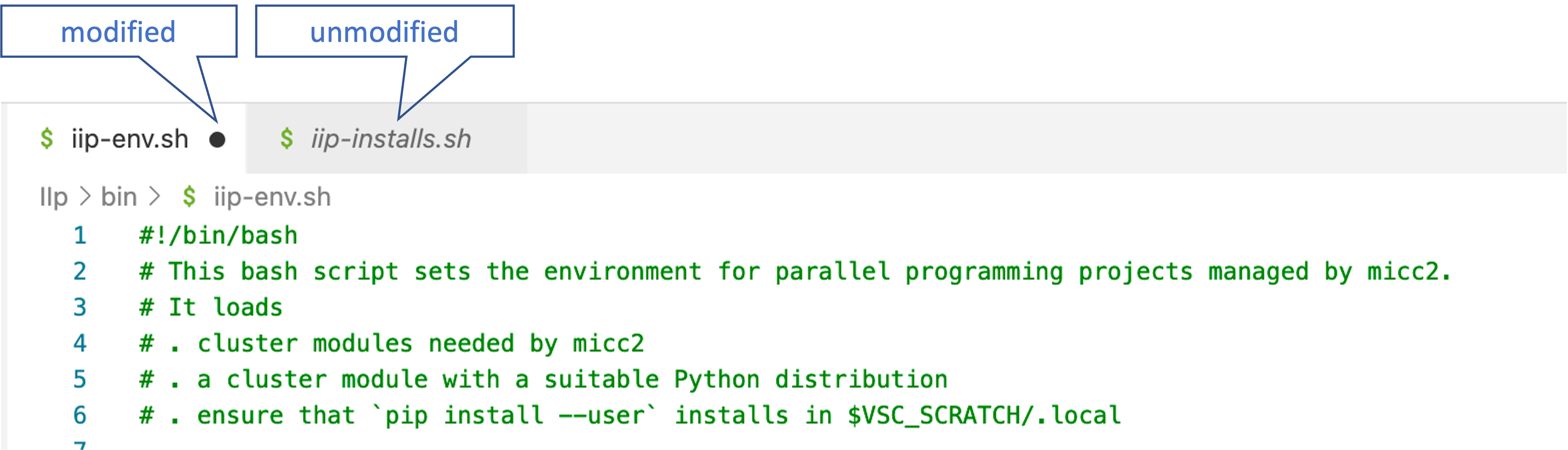
Note that changes to the remote files you are editing are not automatically saved. If you forget to save, your changes are, obviously, not reflected in the behavior in the terminal, because the terminal will use remote files which haven’t been updated yet. This can sometimes lead to surprises. Modified files are marked in the editor pane with a black dot: